
Copilot in PowerPoint only follows your brand guidelines if your template is built for it. I design Copilot-ready PowerPoint templates, and more broadly AI-ready PowerPoint templates: a master faithful to your identity, layouts designed for AI, a library of model slides and ready-to-use instructions. Your teams generate on-brand presentations from the very first draft.
New to AI and simply looking for better slides? Start with my guide: making PowerPoint presentations with AI, in your company’s branding.
Why Copilot doesn’t always follow your brand
Copilot relies on the theme and layouts of the file it works from. With a poorly adapted template, or none at all, the flaws are well known: text that is too small, overlapping elements, approximate colours, empty placeholders left on the slide. Microsoft acknowledges this in its own documentation and recommends precise rules for building templates.
The result: presentations generated fast, but that need manual rework, or that go off-brand in front of your clients.
What a Copilot-ready PowerPoint template includes
- Audit of your brand guidelines, current template and a selection of decks, including slides generated by Copilot.
- A master that follows Microsoft’s recommendations: one named master, varied title and content layouts, text placeholders that handle overflow, protected logo and footers.
- Layouts designed for AI: text on a third, half or two thirds of the slide, image, table and two-column placeholders, so Copilot always finds the right layout.
- A library of model slides: key figures, timeline, org chart, comparison, quote, with editable vector icons.
- Ready-to-use instructions and prompts for Copilot, or for the AI tool approved in your company.
- A one-page checklist: minimum font size, amount of text, contrast, readability in the room and on screen.
- Publishing in your organisation assets library (SharePoint), together with your IT department.
How a project runs
- Audit: review of brand guidelines, template and existing decks, with a quantified list of gaps.
- Design of the master, layouts and model slides.
- Testing with Copilot on your real content, then adjustments.
- Publishing and handover to the core team, with the instructions and checklist.
- Optional follow-up: template and instructions updated as Copilot evolves, new model slides, review of key presentations.
Building Claude skills, custom GPTs and Gemini Gems
Not every company has chosen Copilot. The PowerPoint master stays the same; I adapt the instructions to the AI tool your teams are allowed to use.
- ChatGPT: a custom GPT or a project, with your brand rules, template and model slides as attached files.
- Claude: a skill, a folder of rules and files that Claude applies automatically whenever it works on a presentation.
- Gemini: a Gem set up on the same principle, for companies on Google Workspace.
In every case the goal is the same: presentations generated in your brand, with the right hierarchy, the right amount of text and slides that read well in the room.
Why work with a PowerPoint designer
An integrator deploys Copilot; they don’t design your brand. A generalist designer creates brand guidelines; they don’t know the technical constraints of a PowerPoint master. I have been a PowerPoint designer since 2001: I design templates, masters and presentations shown every year at conventions, plenary sessions and congresses.
- Clean, 100% editable files, tested on Windows and Mac.
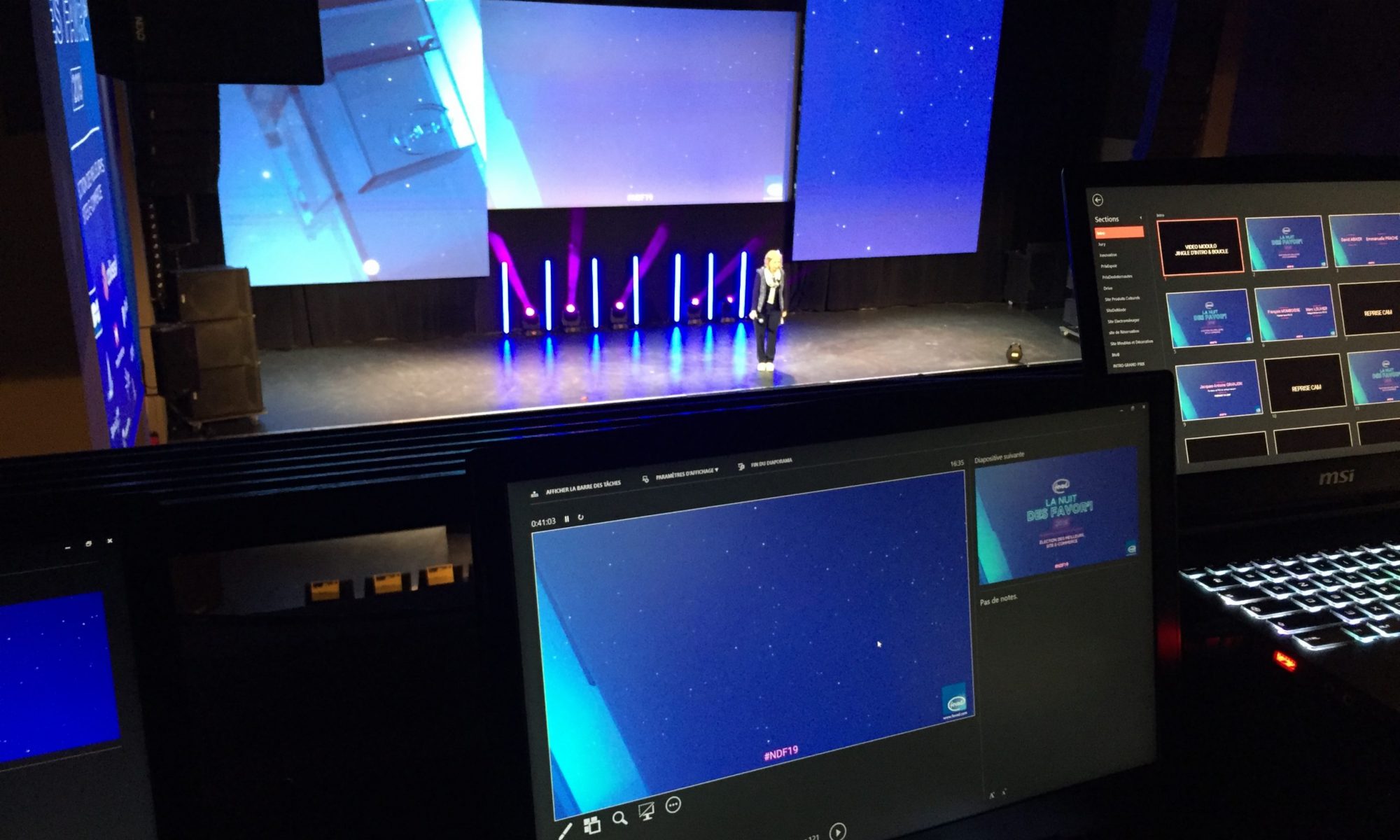
- An eye for delivery: a template must stay readable in the room, on a projector or LED wall, not just on a laptop.
- Daily hands-on use of AI: I know where it goes wrong and how to frame it.
- Confidentiality: used to sensitive content, NDA on request.
Read more: how to create a corporate PowerPoint template and Copilot, Gamma, Beautiful.ai: AI presentation tools versus a designer.
Who is it for?
- Communications and marketing departments that want to keep control of their brand as AI arrives.
- Multi-entity or multilingual groups rolling out Microsoft 365 Copilot.
- Agencies managing a client’s visual identity that need to deliver a Copilot-ready template.
Frequently asked questions
What is a Copilot-ready PowerPoint template?
It is a corporate PowerPoint template built so that Microsoft 365 Copilot can use it properly: a clean slide master, varied and well-named layouts, text placeholders that handle overflow, and protected logo and footer areas. Copilot then generates slides that follow your brand guidelines instead of improvising.
Can Copilot use my company’s PowerPoint template?
Yes. Copilot in PowerPoint reuses the theme and layouts of the file or template it works from. The most reliable setup is to publish the template in your organisation assets library (SharePoint): people pick it, and Copilot generates slides in your brand. The template still has to be built for it.
What does Microsoft require for a Copilot-compatible template?
Microsoft recommends, among other things, a single renamed slide master, at least four basic layouts (two title slides and two content slides), no more than 40 layouts, editable text placeholders that shrink text on overflow, and varied layouts where text fills a third, half or two thirds of the slide.
Does my current template work with Copilot?
Often only partly. A template designed for human users does not always have the layouts, names and placeholders Copilot needs, so text that is too small, overlaps or empty placeholders appear. An audit of your template and a few generated decks shows exactly what needs fixing.
Is an AI-ready template also useful for ChatGPT, Claude or Gemini?
Yes. The PowerPoint master stays the same; only the instructions change. I adapt them to the AI tool your teams are allowed to use: a custom GPT or project for ChatGPT, a skill for Claude, a Gem for Gemini.
Do we need Microsoft 365 Copilot licences?
To generate presentations with Copilot, yes: your users need Microsoft 365 Copilot. The template remains a standard PowerPoint template, so it also works perfectly for people who don’t have Copilot.
How much does a Copilot-ready PowerPoint template cost?
The price depends on the number of entities, languages and model slides, and on the follow-up you need. Send me your brand guidelines and current template, and I will come back with a scope and a quote.
Let’s talk about your template
NextSlide – Pierre Henniquant
PowerPoint and Keynote designer based in Marseille, France, working with clients across Europe and worldwide
Phone: +33 6 03 52 62 28
Email: please@nextslide.fr
Send me your brand guidelines, your current template and the number of users involved: I will come back with a scope and a quote.